How to Exclude or Include Your Site in Google AI Results
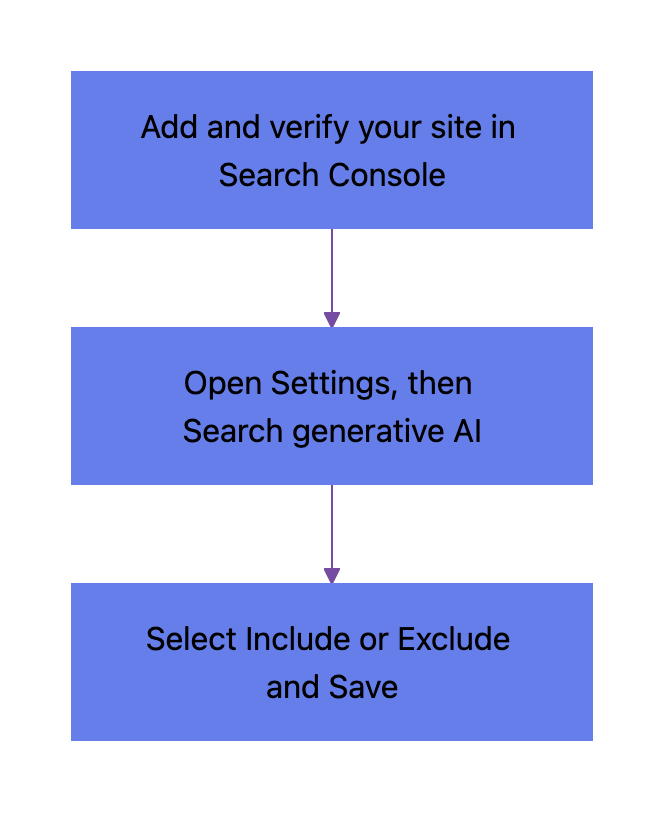
Google Search Console has a control called Search generative AI. This control sets whether your website can appear in Google’s generative AI features: AI Overviews, AI Mode and the generative AI features in Google Discover. By default, Google includes every site. This guide shows how to exclude or include your site in Google AI results with this control. You add the site to Search Console, open the control and select Include or Exclude.
Google tested the control with some site owners in the UK first. As of August 31, 2026, the control is available for all websites worldwide, as Google says in its announcement.
TL;DR: The control is on the Settings page of Google Search Console, in the “AI controls” section. Before you can change it, you must add your site to Search Console and verify it.
Steps to change the Search generative AI control:
What Include and Exclude change in Google AI results
The table compares the two options. An impression is one time that Google shows a link to your site.
| Include (default) | Exclude | |
|---|---|---|
| Links to your pages in AI Overviews and AI Mode | Yes | No |
| Google uses your content as a source for AI answers | Yes | No |
| Traffic and impressions from these features | Yes | No |
| Your pages in regular Google Search results | Yes | Yes |
| Ranking in regular search results | No change | No change |
Google says that the Search generative AI control “will not be used as a ranking signal” for search results outside these AI features. If you exclude your site, AI answers still show content from other sites. That content can look similar to yours.
Step 1: Add your website to Google Search Console
Search Console calls each site that you add a property. You can change the control only for a property that you added and verified. If your site is already in Search Console, go to step 2.
- Open Google Search Console with your Google account.
- In the top left corner, open the property menu.
- Click + Add property.
- Select a property type. The table after these steps compares the two types.
- Type your domain or the URL of your site.
- Do the verification steps for that property type. If you click Verify later, you can verify the site from the property menu at a later time.
| Property type | What it covers | How you verify it |
|---|---|---|
Domain, for example example.com |
All subdomains, http and https, all paths | A DNS record at your domain provider |
URL prefix, for example https://example.com/ |
Only the URLs that start with this exact prefix | Several methods, for example an HTML file or an HTML tag |
If you can, use a Domain property. Then one control covers the whole site. Google has a guide about how to add a property. Our Google Search Console guide explains the reports.
Step 2: Open the Search generative AI control
- Select your site in the property menu in the top left corner.
- Click Settings at the bottom of the left menu.
- Find the AI controls section. The Search generative AI row shows the current value, for example “Include”.
- Click the Search generative AI row.
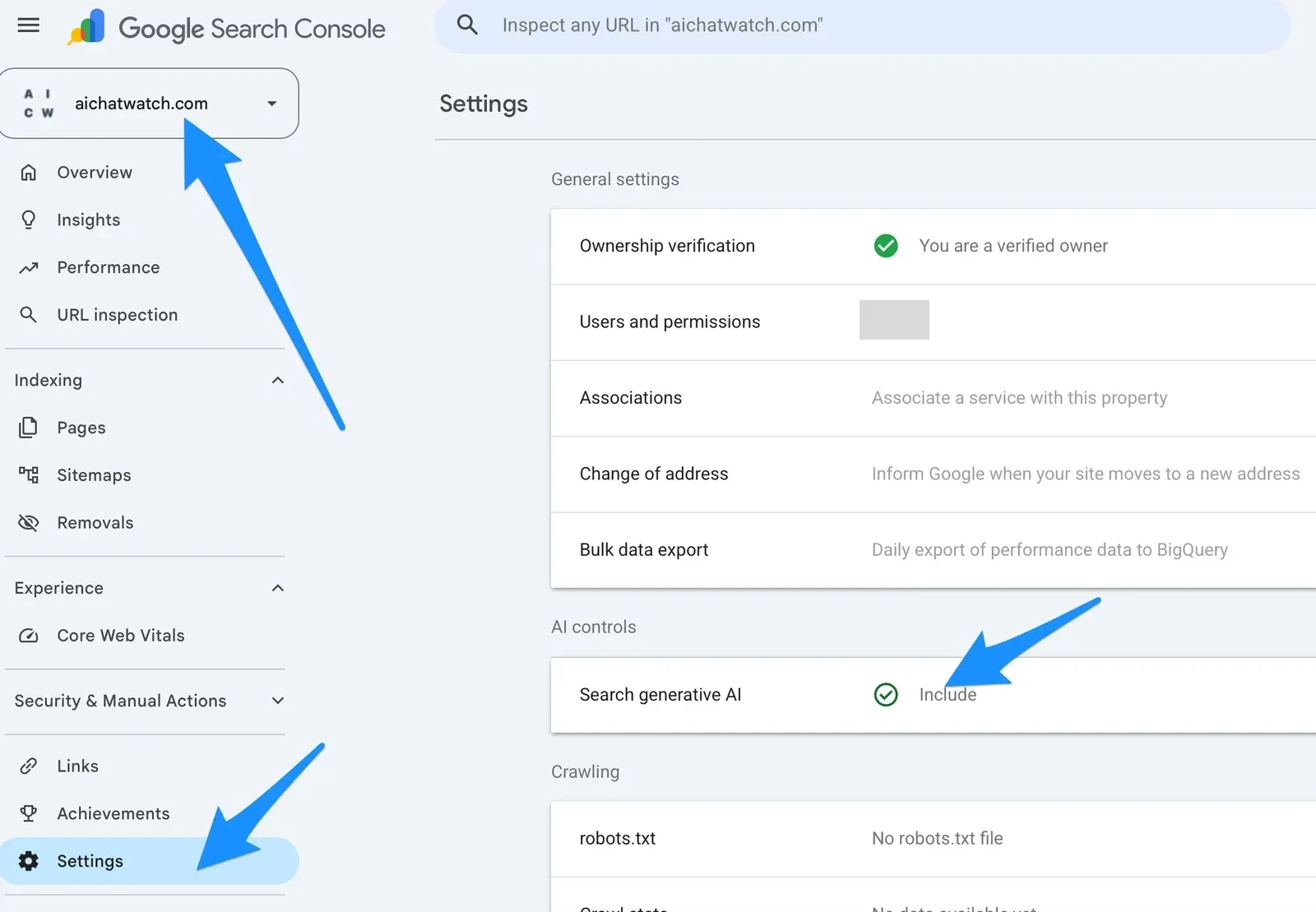
Screenshot: the property menu, Settings in the left menu, and the Search generative AI row with its current value.
Step 3: Select Include or Exclude and save
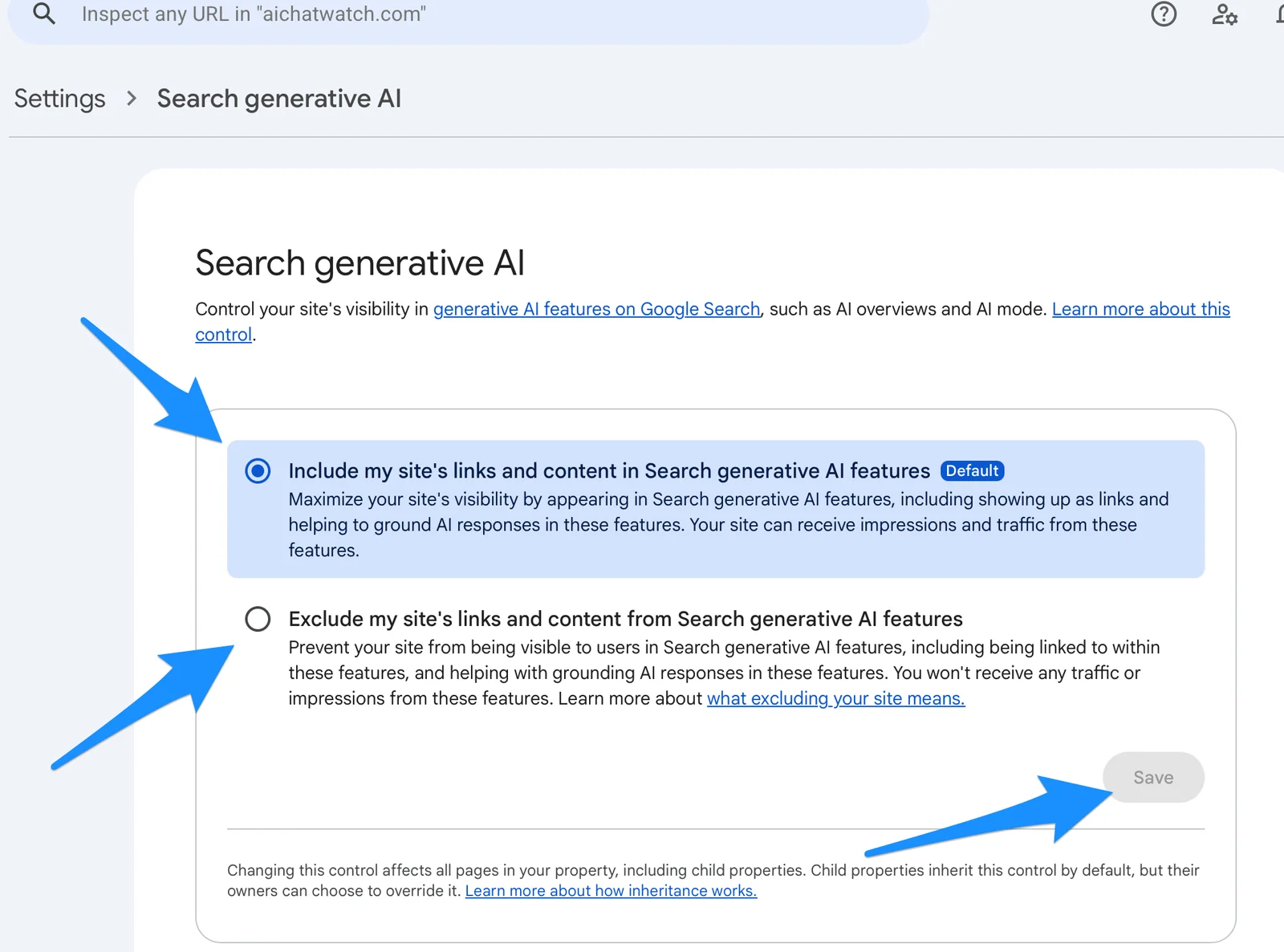
The Search generative AI page shows two options:
- Include my site’s links and content in Search generative AI features. This is the default. Your pages can appear as links in AI Overviews and AI Mode. Google can also use your content as a source for the AI answers.
- Exclude my site’s links and content from Search generative AI features. Your site does not appear in these features. You get no traffic or impressions from them.
- Select the option that you want.
- Click Save. The button becomes active after you select a different option.
Screenshot: the Include and Exclude options and the Save button on the Search generative AI page.
A property that has a parent shows a third option, Inherit control from parent.
How child properties get their value
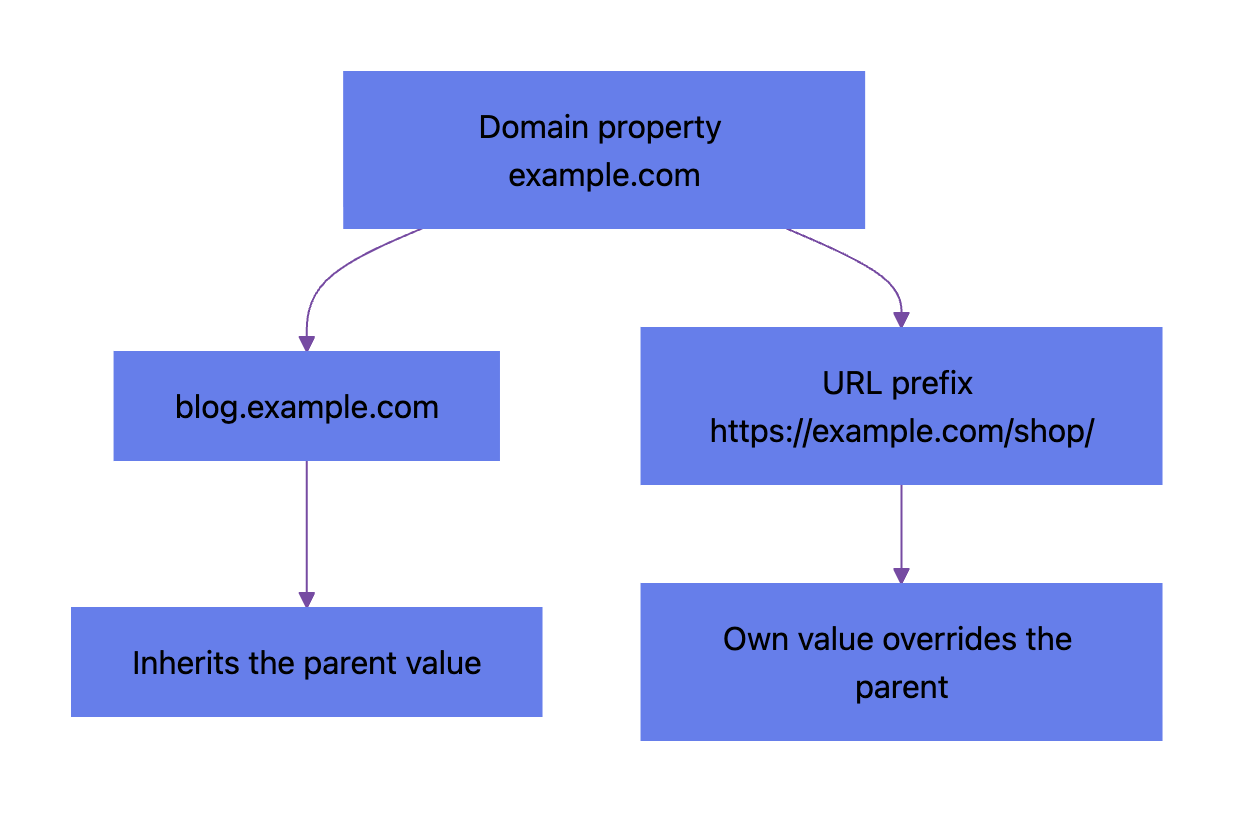
A child property is a property inside another property. For example, blog.example.com is a child of the Domain property example.com, and https://example.com/blog/ is a child of https://example.com/.
- By default, a child property inherits the value of its closest parent.
- The owner of a child property can select Include or Exclude to override the parent.
- When a child property overrides the parent, the owner of the top-level Domain property sees a notification.
How a child property gets its value:
How long the change takes
Google says that changes “generally take a few days” to take effect. Excluded content usually disappears within 1 to 2 days. Because of caching, some pages take longer. The Search generative AI control help page has the full rules.
Search Console also has a Generative AI performance report. It shows the impressions of your pages in AI features, before and after the change. After you exclude your site, it is possible that the report shows no data.
What the control does not change
| Area | Effect of Exclude |
|---|---|
| Regular Google Search | None. To remove a page from Search, use a noindex rule. Our robots meta tag guide shows the syntax. |
| AI training | None. For AI training, Google gives the Google-Extended token in robots.txt. See robots.txt for AI crawlers. |
| ChatGPT, Perplexity, Claude and other AI assistants | None. These assistants do not use this control. You set rules for their crawlers in robots.txt. |
| Merchant Center and Google Ads | None. Google says that the control does not override your choices for these products. |
| Search in general | None. Your content can still help Google understand queries and web pages. |
If you want visitors from AI search, keep the Include option. Exclude stops all traffic and impressions from AI Overviews, AI Mode and the generative AI features in Discover.
Frequently Asked Questions
If I exclude my site from AI Overviews, does my ranking in Google change?
Google says that the control is not a ranking signal for search results outside its generative AI features. Your pages stay in regular Google Search results. Only your links and content in AI Overviews, AI Mode and the generative AI features in Discover disappear.
Can I exclude only some pages of my site?
The control applies to a whole property. To use a different value for one part of the site, add that part as a separate property. An example is a URL prefix property for https://example.com/blog/. Then change the control in that property. Its value overrides the value of the parent.
Does Exclude stop the use of my content for AI training?
No. The Search generative AI control does not affect AI training. For AI training, Google gives the Google-Extended token in robots.txt.
How do I include my site again after I excluded it?
Go to Settings > Search generative AI. Select the Include option. Then click Save. Google says that changes generally take a few days to take effect.